Get Started with Tracing
This guide walks you through ingesting your first trace into Langfuse. If you’re looking to understand what tracing is and why it matters, check out the Observability Overview first. For details on how traces are structured in Langfuse and how it works in the background, see Core Concepts.
Get API keys
- Create Langfuse account or self-host Langfuse.
- Create new API credentials in the project settings.
Ingest your first trace
If you’re using one of our supported integrations, following their specific guide will be the fastest way to get started with minimal code changes. For more control, you can instrument your application directly using the Python or JS/TS SDKs.
Langfuse’s OpenAI SDK is a drop-in replacement for the OpenAI client that automatically records your model calls without changing how you write code. If you already use the OpenAI python SDK, you can start using Langfuse with minimal changes to your code.
Start by installing the Langfuse OpenAI SDK. It includes the wrapped OpenAI client and sends traces in the background.
pip install langfuseSet your Langfuse credentials as environment variables so the SDK knows which project to write to.
LANGFUSE_SECRET_KEY = "sk-lf-..."
LANGFUSE_PUBLIC_KEY = "pk-lf-..."
LANGFUSE_BASE_URL = "https://cloud.langfuse.com" # 🇪🇺 EU region
# LANGFUSE_BASE_URL = "https://us.cloud.langfuse.com" # 🇺🇸 US region
Swap the regular OpenAI import to Langfuse’s OpenAI drop-in. It behaves like the regular OpenAI client while also recording each call for you.
from langfuse.openai import openaiUse the OpenAI SDK as you normally would. The wrapper captures the prompt, model and output and forwards everything to Langfuse.
completion = openai.chat.completions.create(
  name="test-chat",
  model="gpt-4o",
  messages=[
      {"role": "system", "content": "You are a very accurate calculator. You output only the result of the calculation."},
      {"role": "user", "content": "1 + 1 = "}],
  metadata={"someMetadataKey": "someValue"},
)
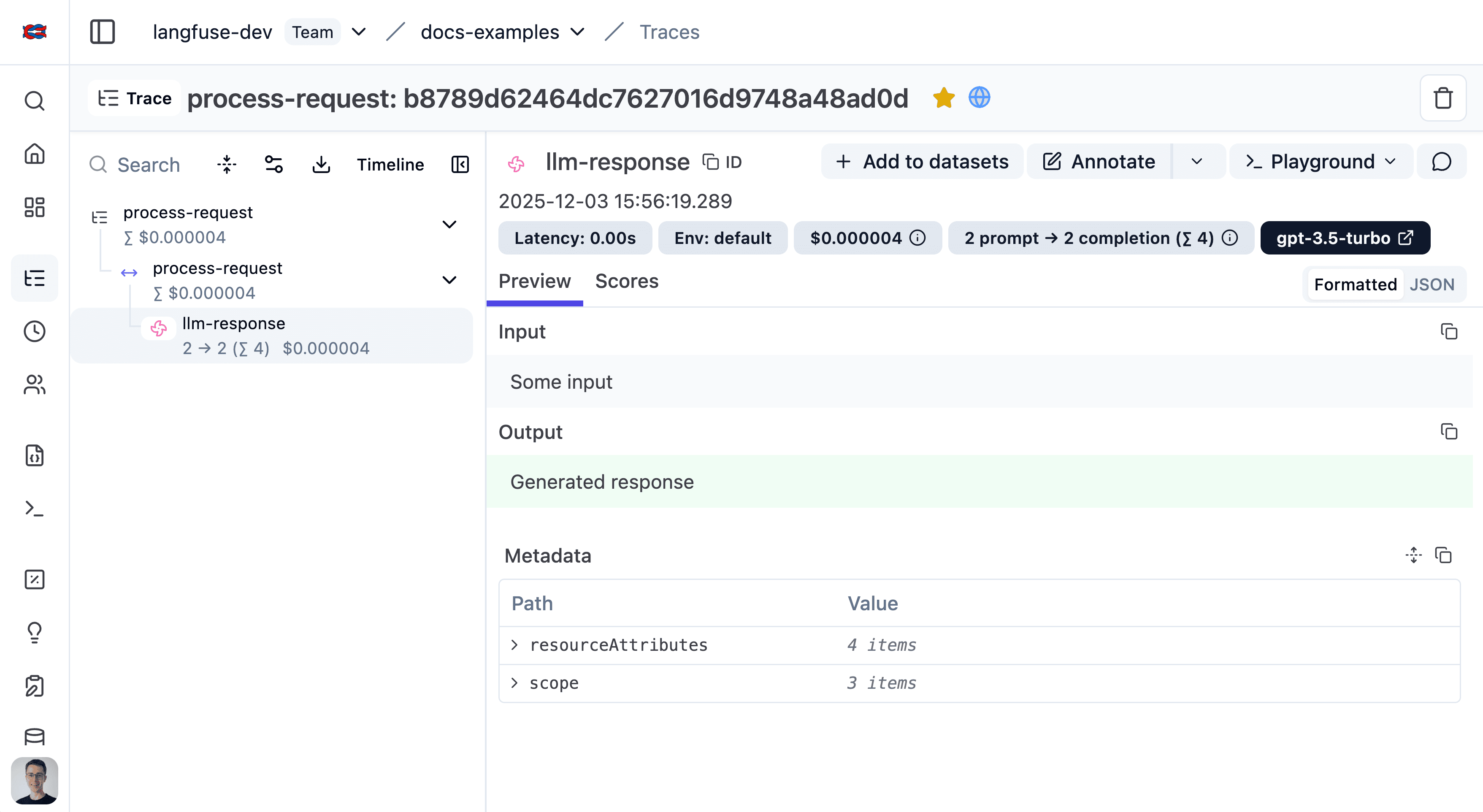






See your trace in Langfuse
After running your application, visit the Langfuse interface to view the trace you just created. (Example LangGraph trace in Langfuse)
Not seeing what you expected?
- I have setup Langfuse, but I do not see any traces in the dashboard. How to solve this?
- Why are the input and output of a trace empty?
- Why do I see HTTP requests or database queries in my Langfuse traces?
Next steps
Now that you’ve ingested your first trace, you can start adding on more functionality to your traces. We recommend starting with the following:
- Group traces into sessions for multi-turn applications
- Split traces into environments for different stages of your application
- Add attributes to your traces so you can filter them in the future
Already know what you want? Take a look under Features for guides on specific topics.